Search
The Search tab monitors Google results for your brand keywords and evaluates each one with AI, so a result that impersonates you surfaces as a finding you can review. You find it on a brand’s page, under the Search tab. The red numbers in the screenshots match the numbers in the text.
What you see
Section titled “What you see”The Search tab lists the websites AI has flagged as suspicious for your brand keywords, each one waiting for your review.
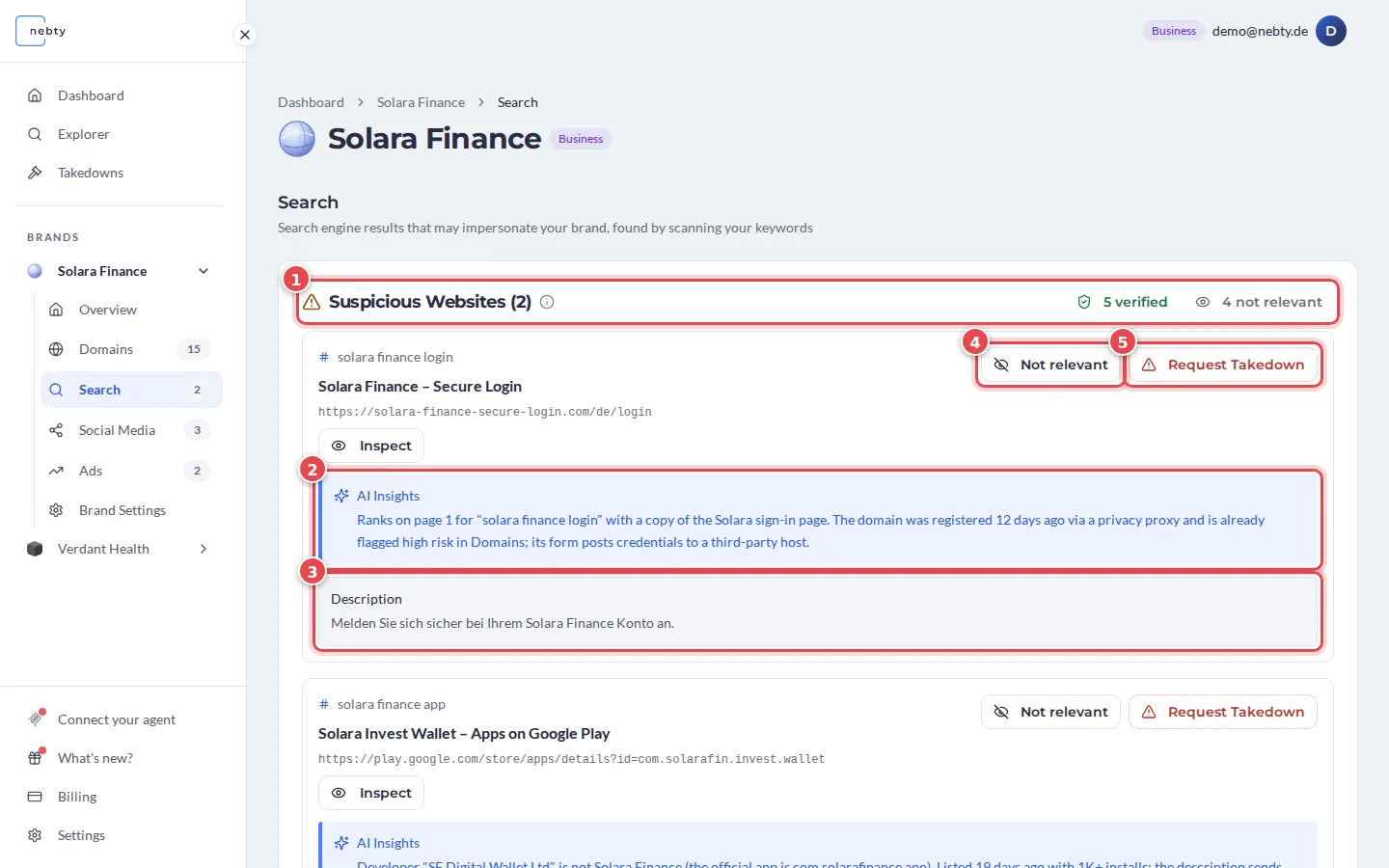
The heading Suspicious Websites (1) shows how many websites are waiting for review. Each website appears once, even when several keywords found it. Next to it are two counts. Select verified to see results on your own site or on domains you marked as trusted. Select not relevant to see the results you have hidden.
For every result you get:
- The keyword that found it, the page title and the address.
- AI Insights (2): the AI’s reasoning for why the result was flagged.
- Description (3): the description of the result from the search page.
- Inspect: opens a live preview of the page, so you do not have to visit it yourself. See Inspect a website screenshot.
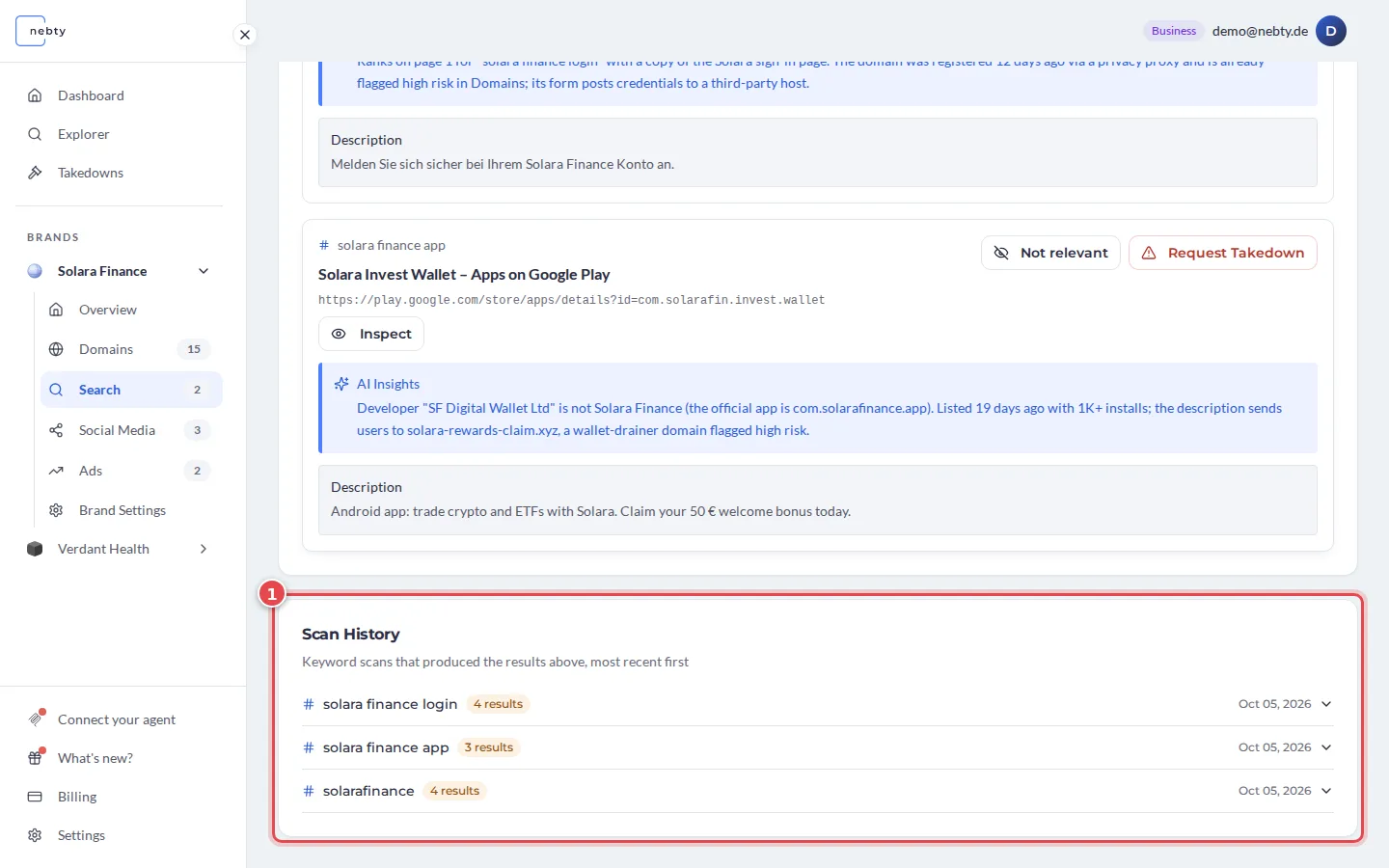
Below the results, Scan History (1) lists the keyword scans behind them, newest first. For each keyword it shows how many results the scan found and the date, so you can see when nebty last checked your keywords.
Reviewing a result
Section titled “Reviewing a result”Every result has two actions.
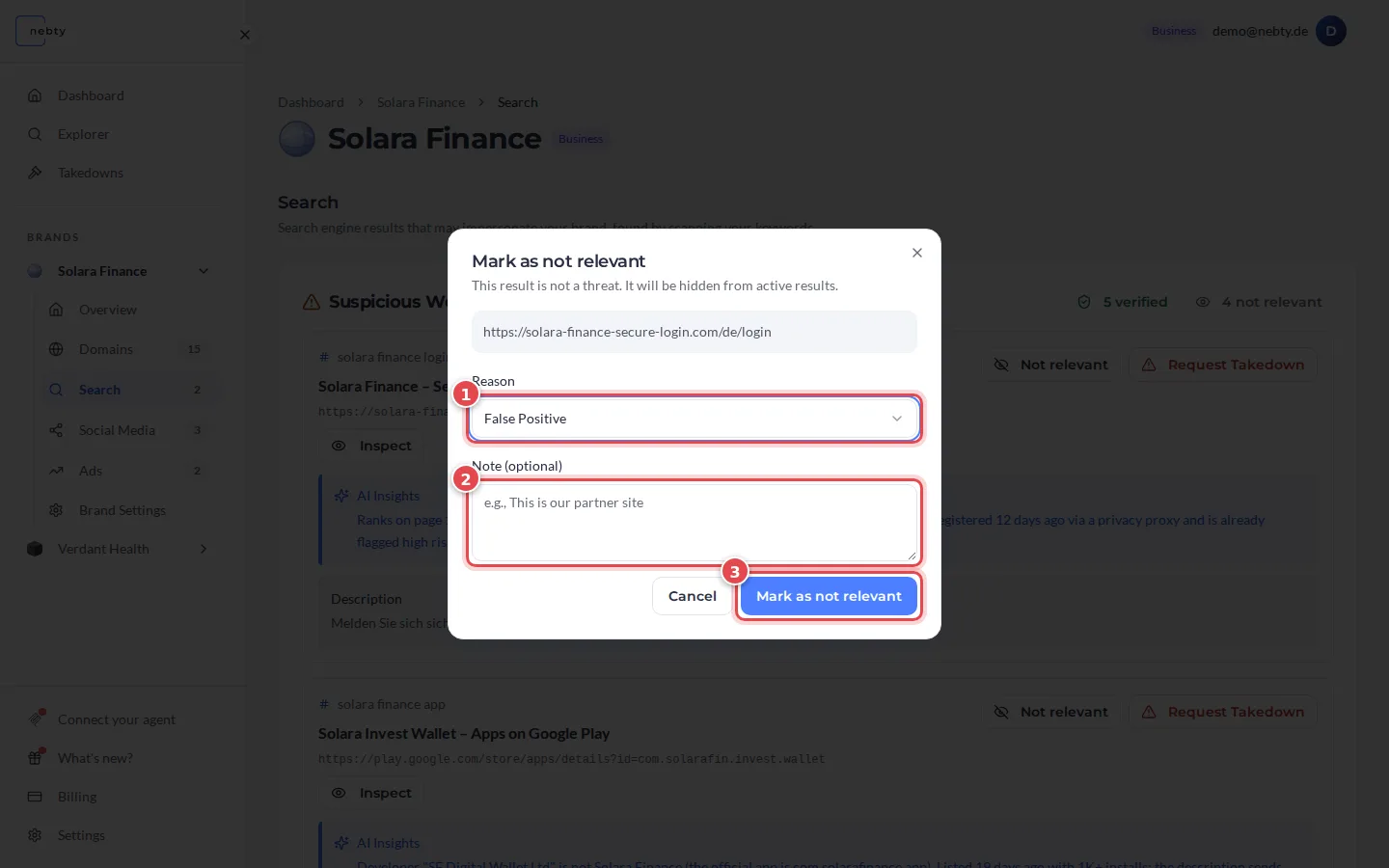
If a result does not apply to your brand, select Not relevant (4). A dialog opens. Choose a Reason (1), for example False Positive, Known Partner / Legitimate or Own Property. Add a Note (2) if you want to. Then select Mark as not relevant (3). The result leaves your review list. To bring it back, select the not relevant count and then Restore.
If a result is genuine impersonation, select Request Takedown (5, in the first screenshot). This is the starting point for a Takedown.