Mark a finding as reviewed
Record your assessment of a finding by telling nebty what it is. The red numbers in the screenshots match the numbers in each step.
Before you start
Section titled “Before you start”You need an account with at least one brand set up, and a finding to review, for example a domain in Domain Monitoring, a result in Search, a profile in Social Media, or an ad in Ads. If you have not looked at a finding yet, start with Review your first finding to see how the Risk Score and AI Verdict work together.
-
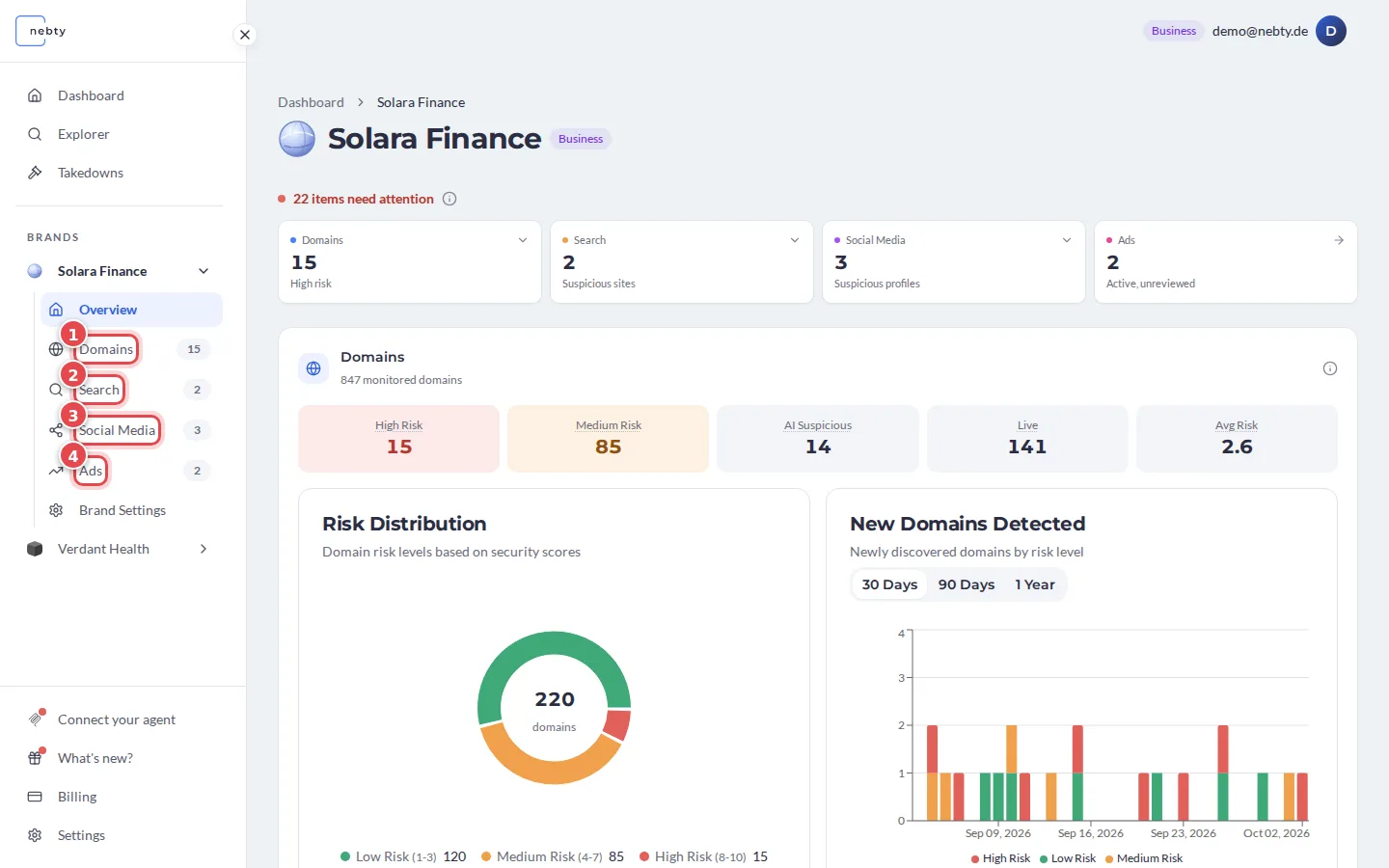
Open a finding. In the brand’s navigation, choose the channel: Domains (1), Search (2), Social Media (3) or Ads (4). Then open the finding you want to deal with.
-
Read the signals that the channel shows. They tell you how likely the finding is to be impersonation and how much attention it deserves.
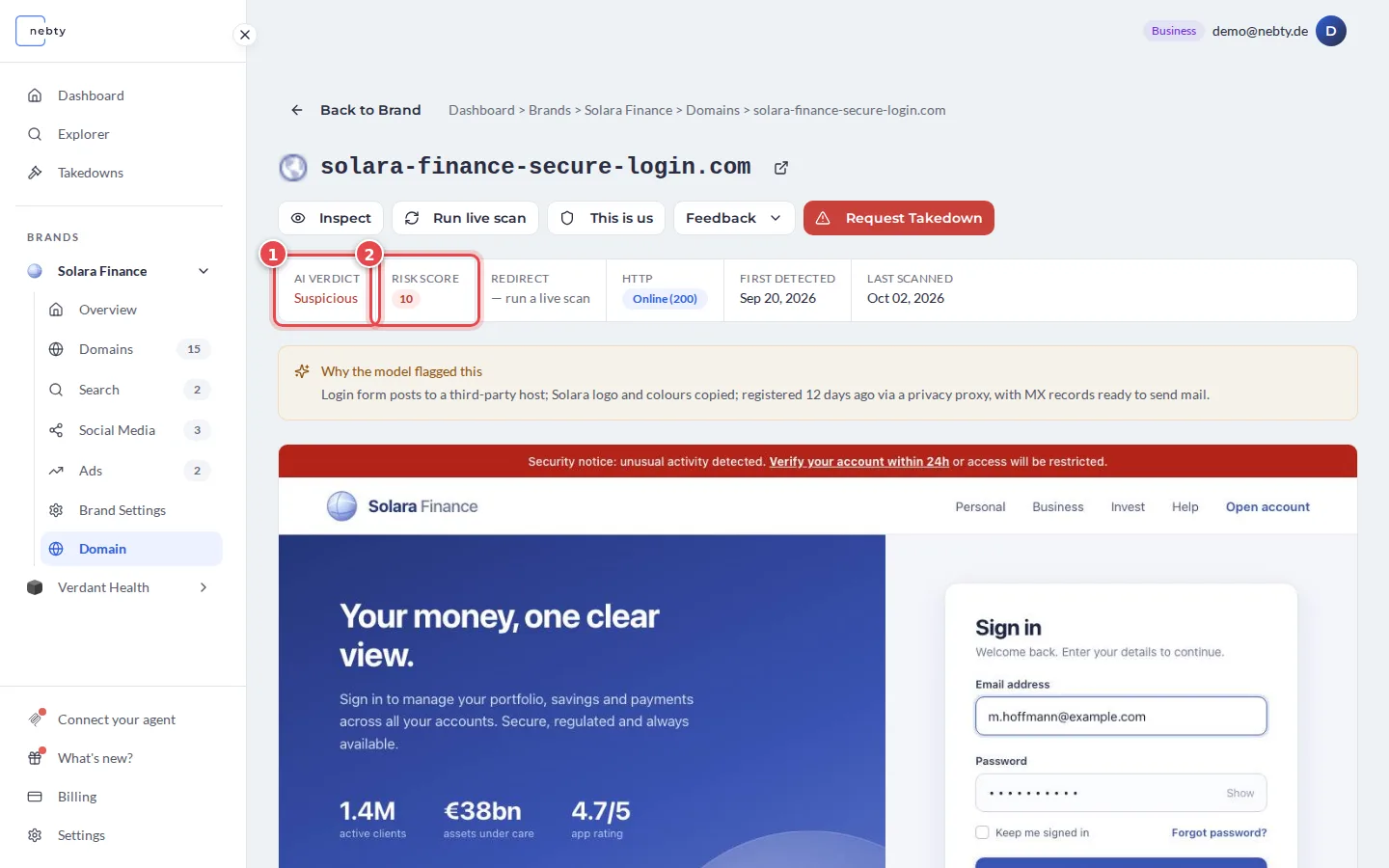
In Domains, open the domain. The AI Verdict (1) and the Risk Score (2) sit at the top of the page.
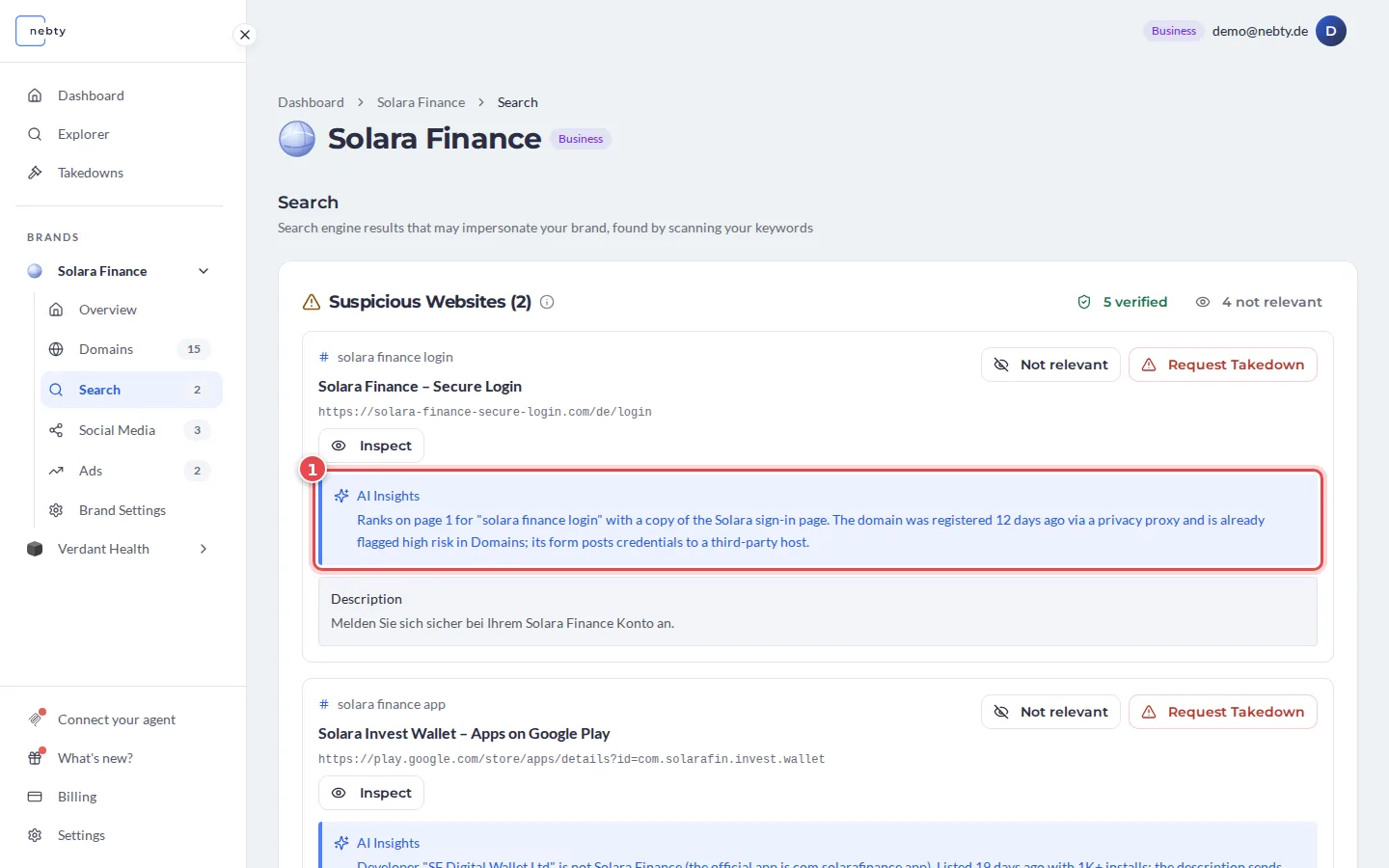
In Search, read the AI Insights write-up (1) under each result.
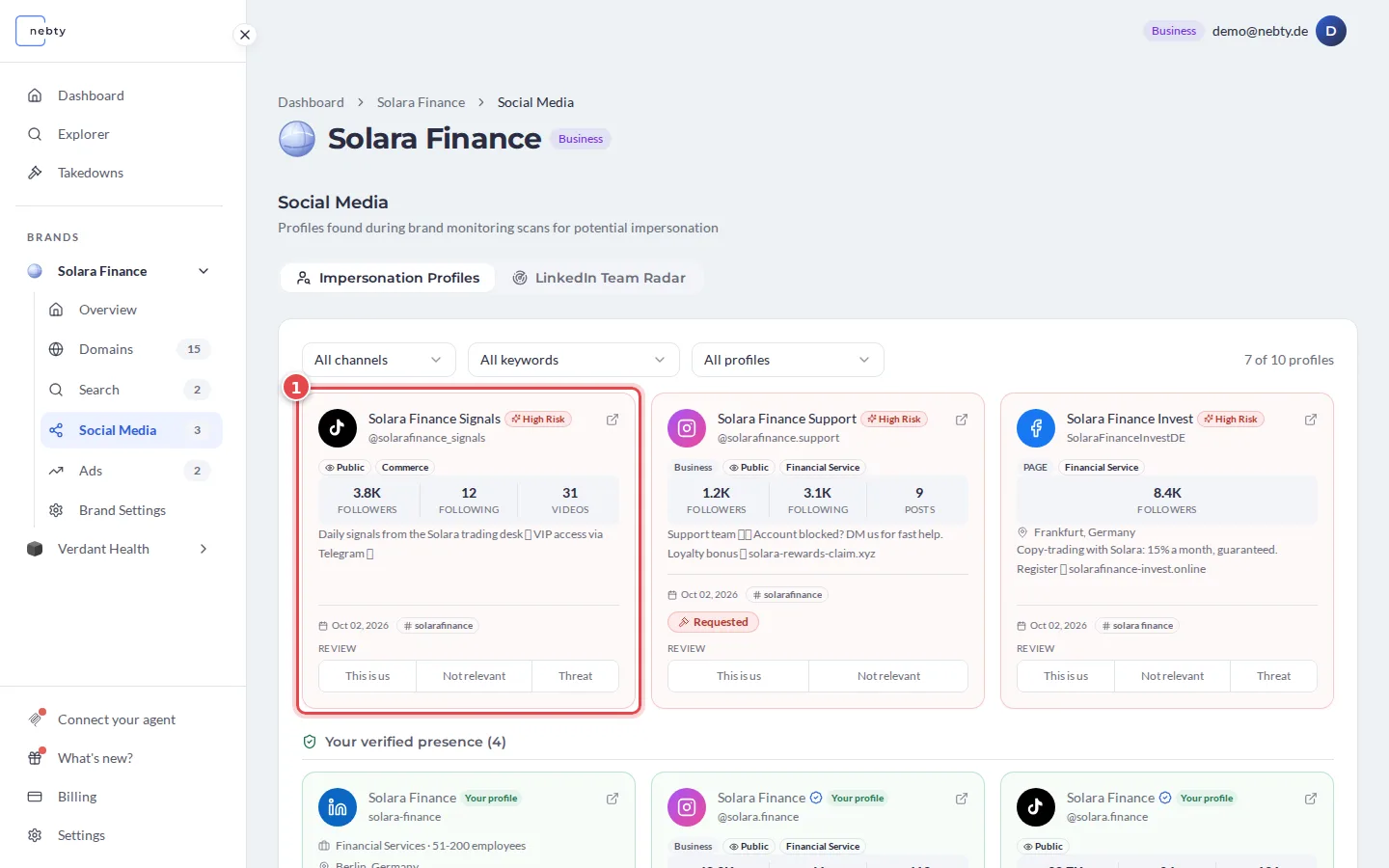
In Social Media and Ads, each card (1) carries a risk badge such as High Risk.
-
Pick the outcome that fits. The buttons differ per channel.
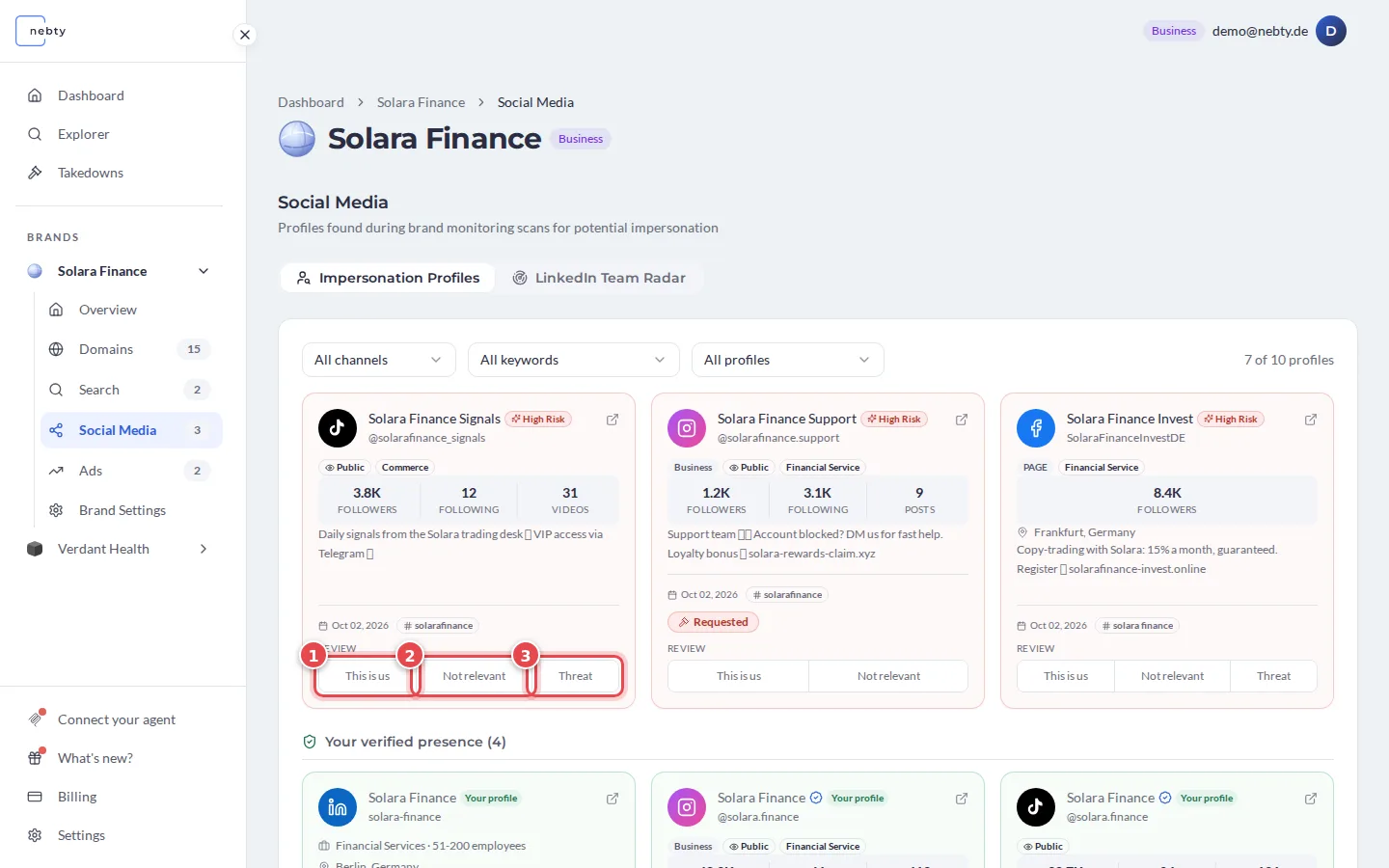
On a card in Social Media or Ads, you have three choices:
- (1) This is us: the profile or ad belongs to you. Mark it as your own.
- (2) Not relevant: it is not impersonation and not worth pursuing.
- (3) Threat: it is genuine impersonation or abuse. This is the starting point for a takedown.
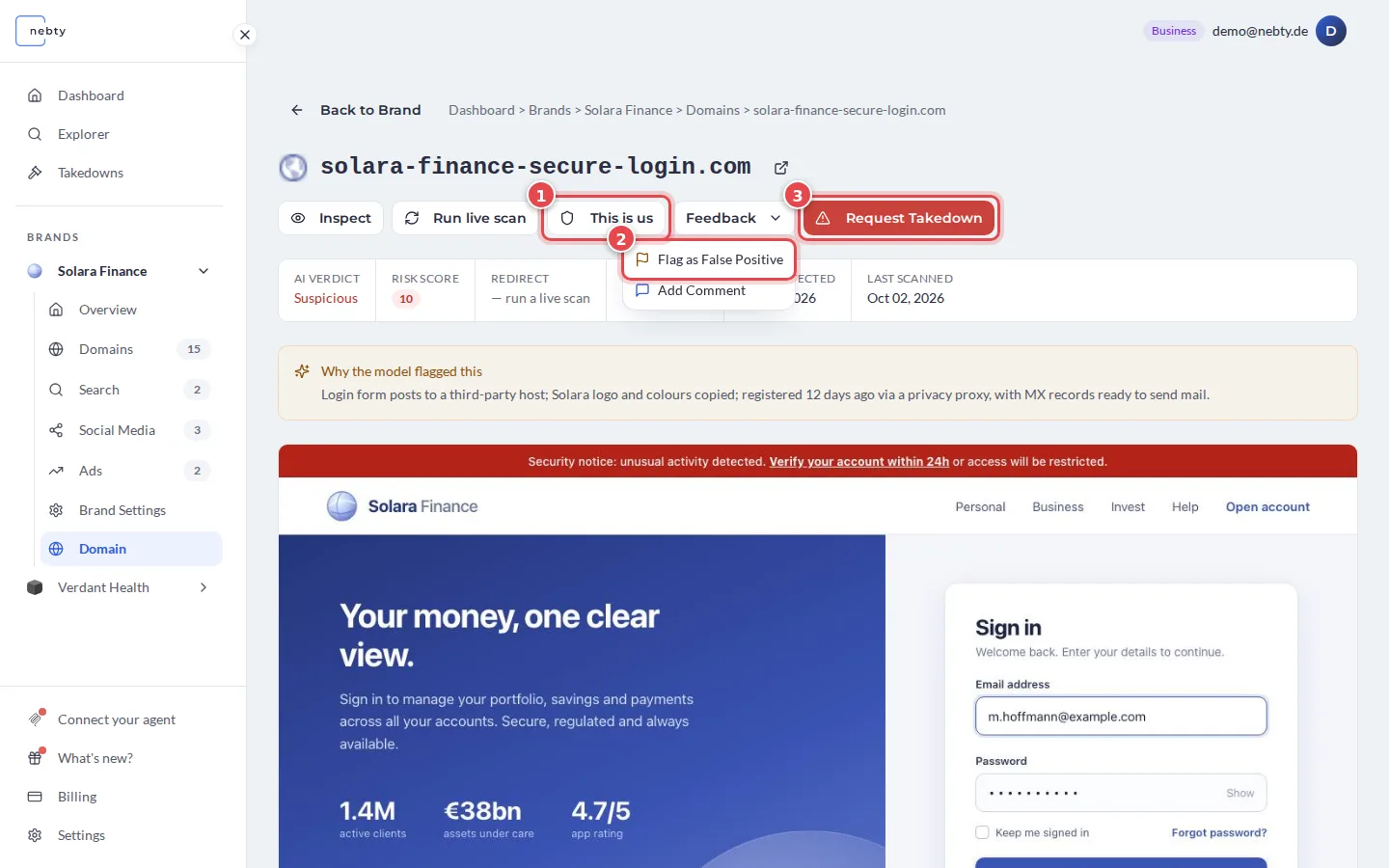
On a domain in Domains, the choices sit at the top of the page:
- (1) This is us: the domain belongs to you. Its Risk Score becomes 0 for this brand, and nebty stops flagging it.
- (2) Flag as False Positive in the Feedback menu: the domain is not a threat.
- (3) Request Takedown: the domain is genuine impersonation.
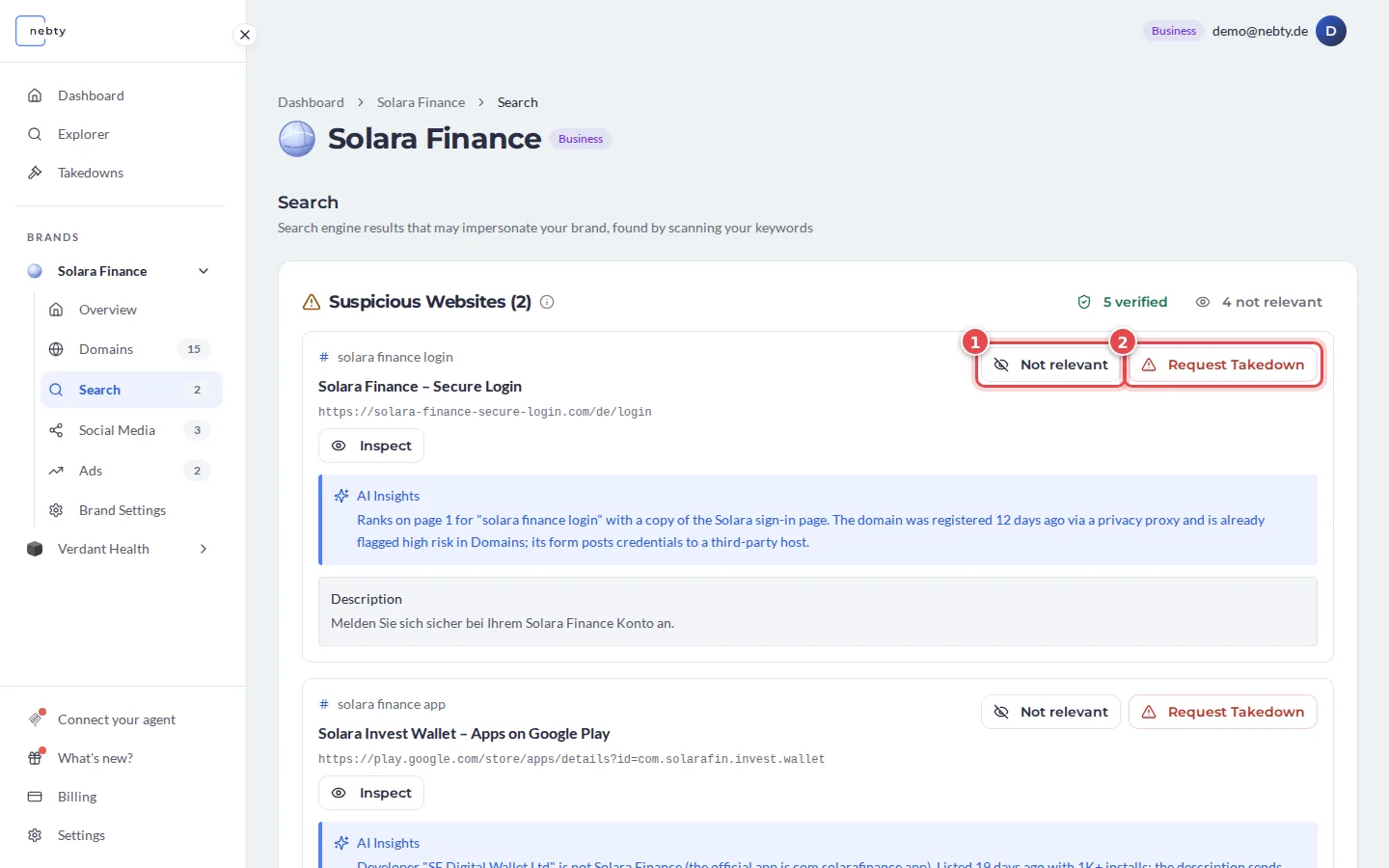
On a result in Search, you have two choices:
- (1) Not relevant: not a threat, for example a false positive, a partner or your own site. This hides the result.
- (2) Request Takedown: the result is genuine impersonation.
-
Repeat for the next finding. Working through your queue this way keeps the dashboard focused on what actually matters. A finding that you have asked a takedown for shows Requested (1).
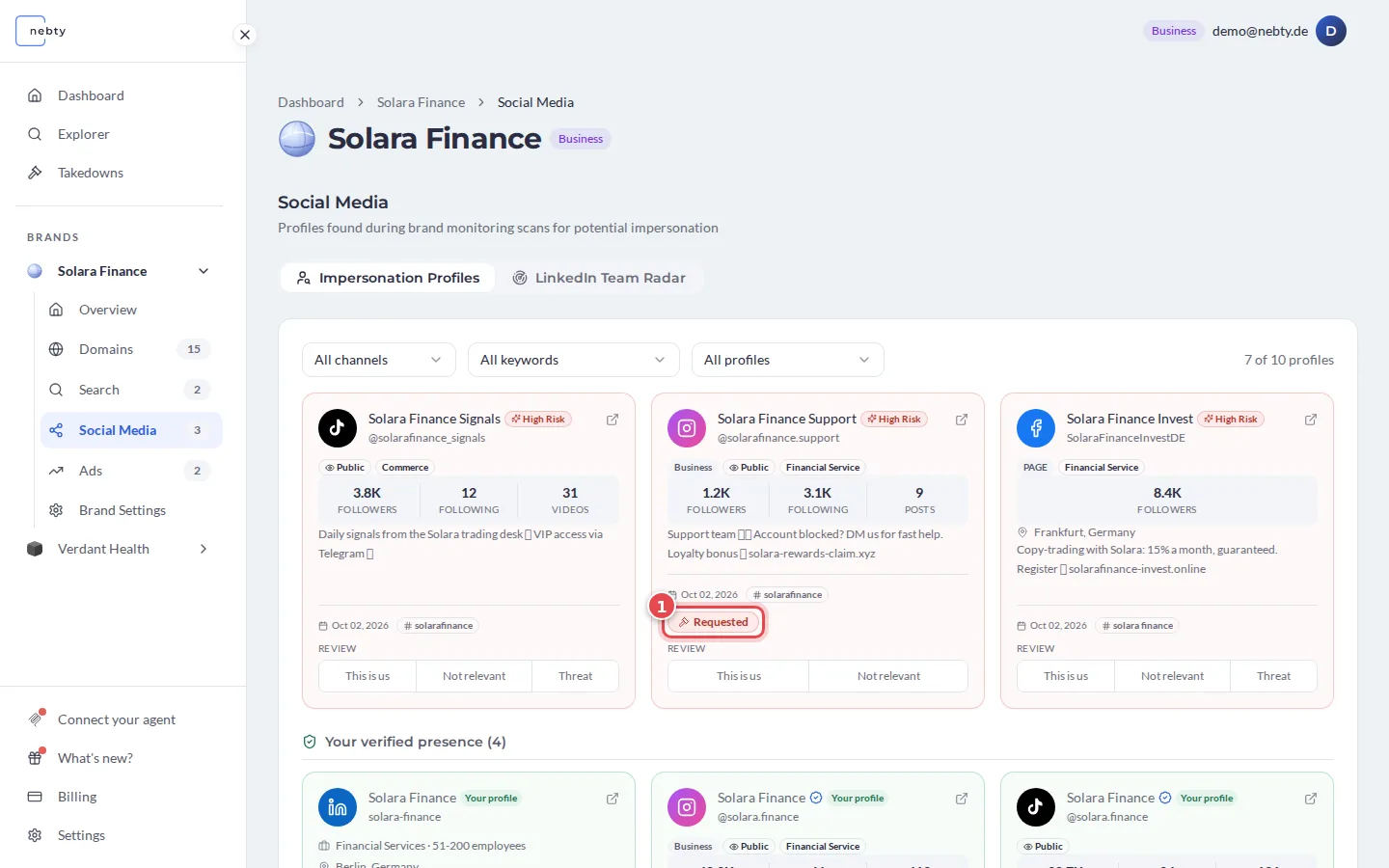
The same questions apply in all four channels: is it yours, is it harmless, or is it a genuine threat? The controls look a little different per channel. Domains and Search have no Threat button. They offer Request Takedown instead. Once you know what each outcome means, it carries over everywhere.
What happens next
Section titled “What happens next”This is us marks the finding as your own, and Not relevant hides it from your active results. In Domains, Flag as False Positive sets the Risk Score to 0 for this brand; the domain stays on record and may still appear depending on your filters. Marking a finding Threat, or using Request Takedown in Domains and Search, starts a takedown request that you can follow from the Takedowns area. How quickly a takedown resolves depends on the case, so treat triage as the start of the process, not the end of it.
Try triage in the demo(opens the public demo with sample data)Related: Domain Monitoring