Review a suspicious domain
This guide walks you through a domain that nebty has flagged, so you can decide whether it is a real threat. The red numbers in the screenshots match the numbers in each step.
Before you start
Section titled “Before you start”You need an account with a brand that has domain findings. If you just want to try the steps without an account, open the demo instead.
-
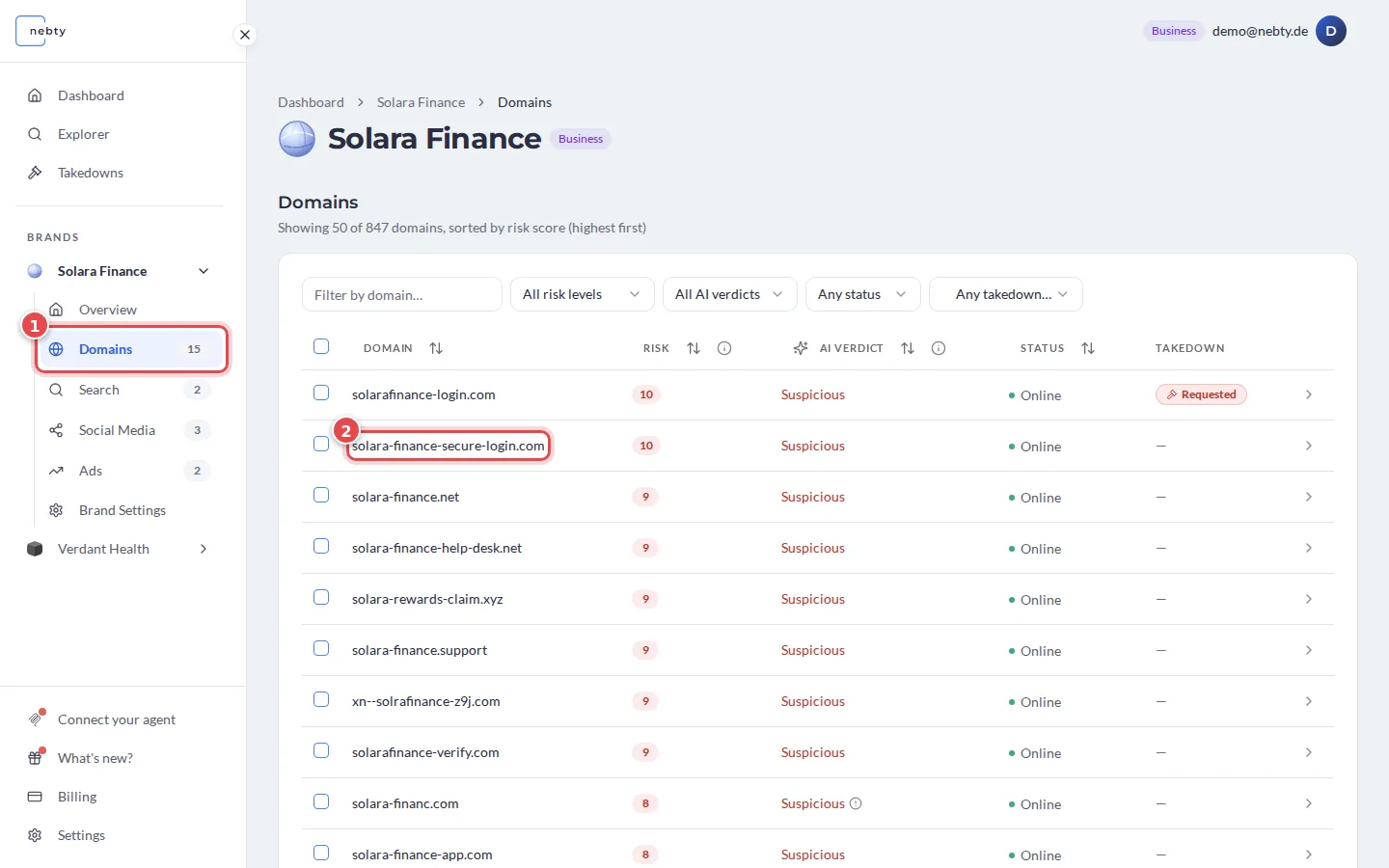
Open the domain list. Select Domains (1) in the brand’s navigation. This is Domain Monitoring. The table lists every domain nebty has found, sorted by risk score with the highest first. Select a domain name (2) to open it.
-
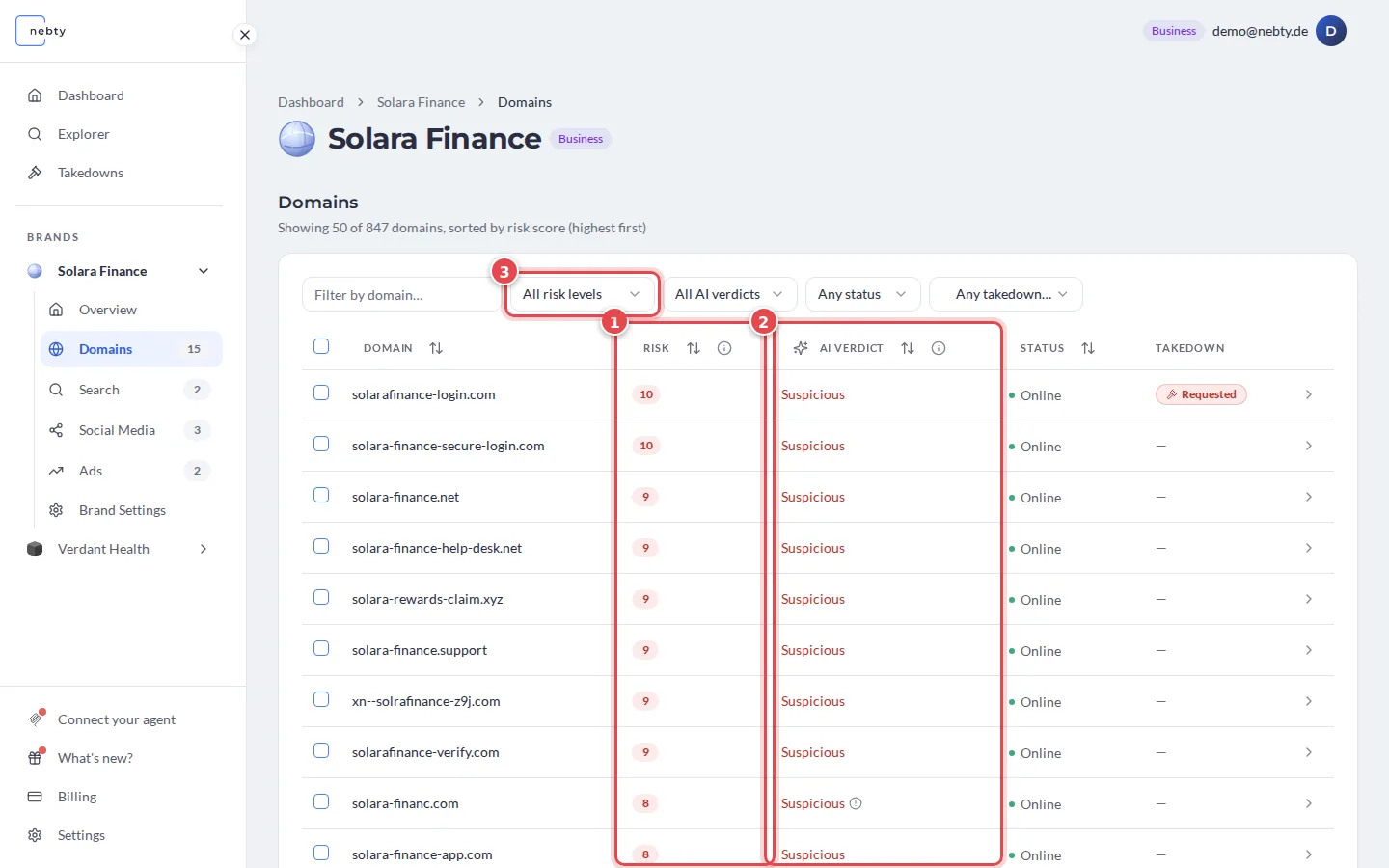
Read the risk and the AI verdict together. The Risk column (1) shows the risk score from 0 to 10: Low (1-3), Medium (4-7) or High (8-10); 0 means no risk. The AI Verdict column (2) shows what the AI concluded, for example Suspicious, Needs Review or Benign. A domain that the AI has not looked at yet reads Not Yet Assessed. A high risk with a Suspicious verdict is the clearest sign that the domain deserves a closer look. To narrow the table, use the filters above it, for example the risk level filter (3). The info icon next to each column title explains the column.
-
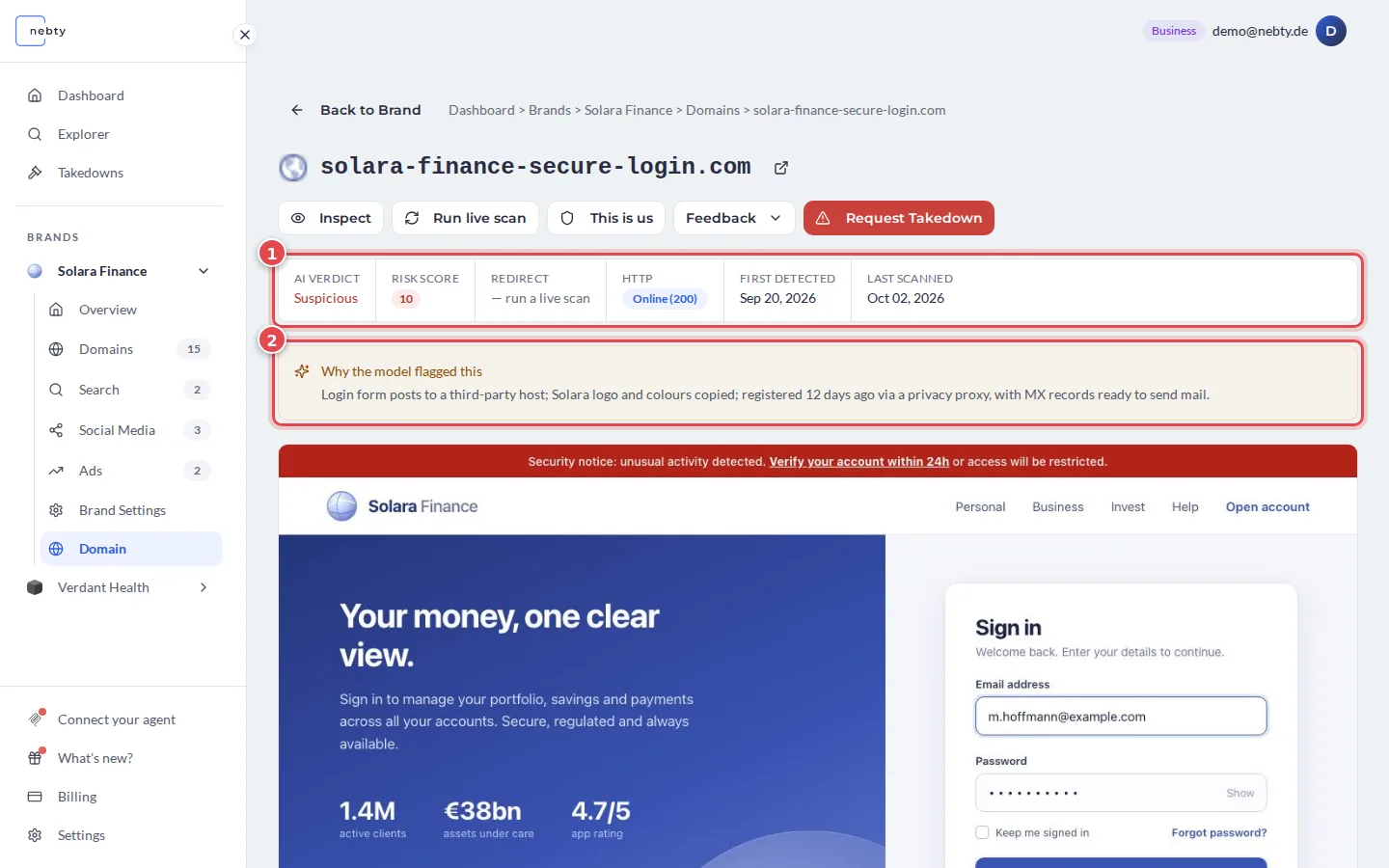
Open the domain to see the full picture. At the top of the domain page, the summary bar (1) repeats the AI Verdict and the Risk Score. It also shows Redirect, HTTP status, First detected and Last scanned. Why the model flagged this (2) explains the verdict in plain words. Below it, nebty shows the last captured screenshot of the site.
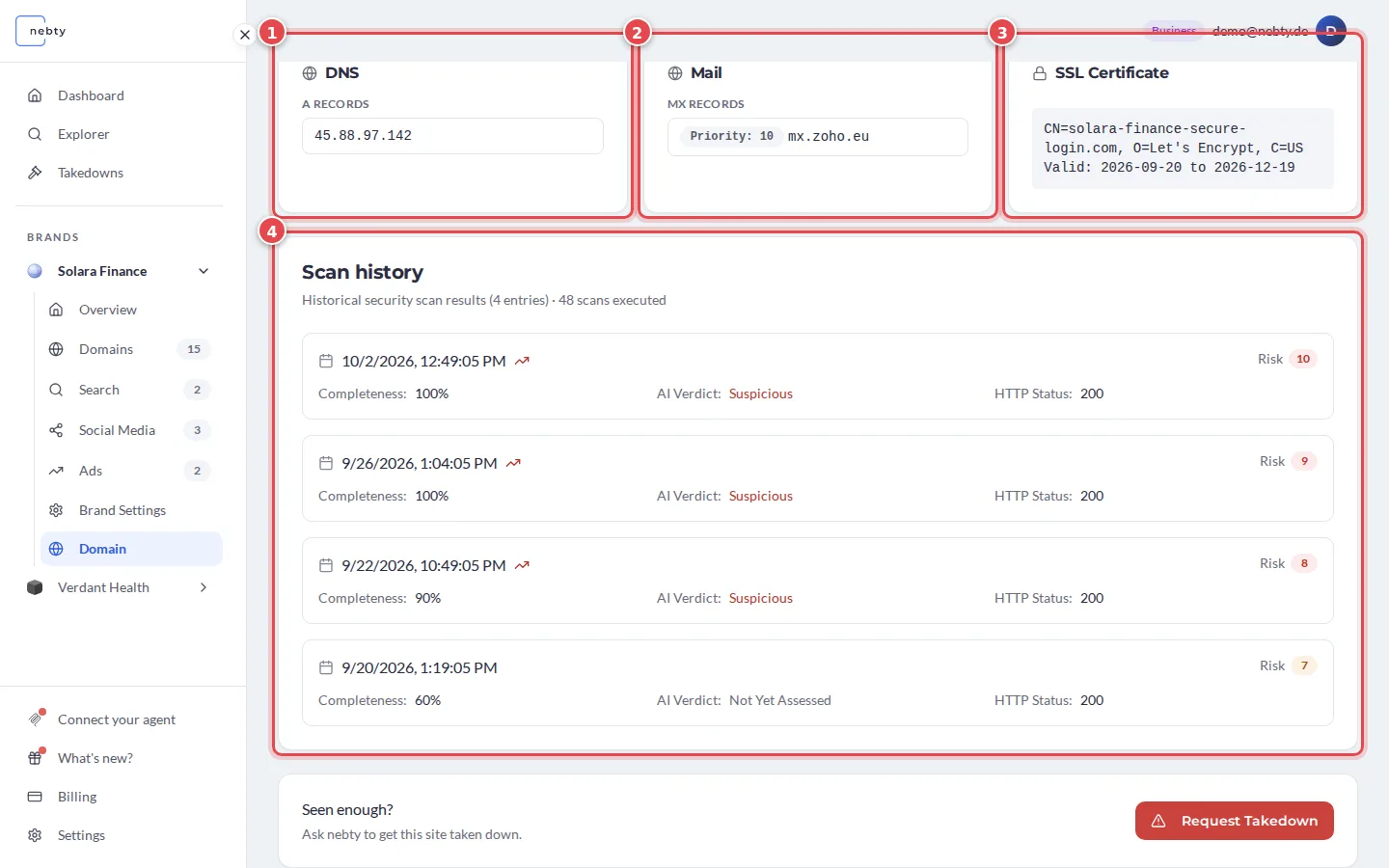
Scroll down to check what the domain resolves to and how it is set up: DNS (1), Mail (2) and the SSL Certificate (3). Scan history (4) lists the earlier scans with their risk, AI verdict and HTTP status, so you can see how the domain has changed since nebty first saw it.
-
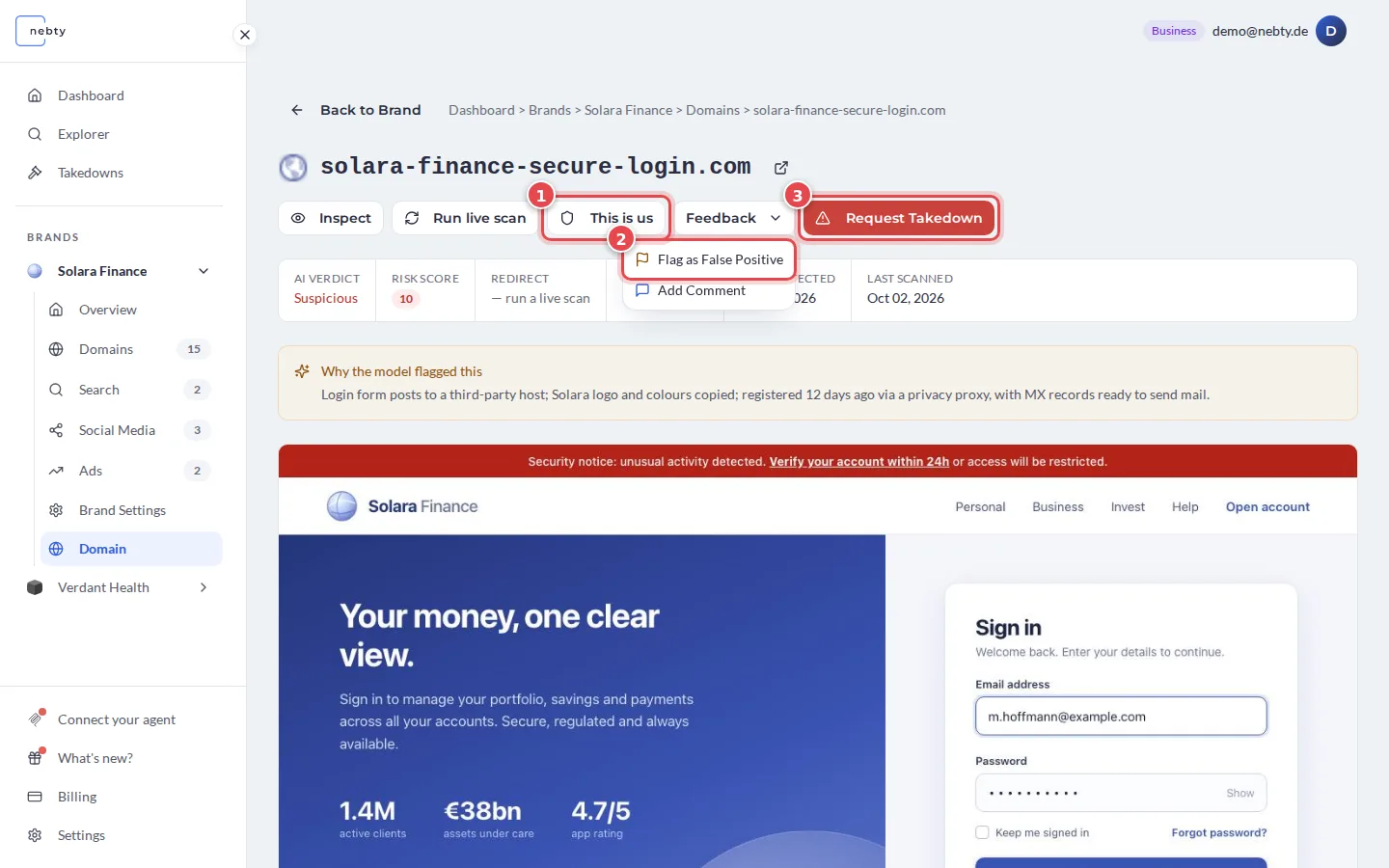
Decide what the domain is and act on it. The buttons at the top of the domain page offer three outcomes:
- (1) This is us: the domain belongs to you. Its Risk Score becomes 0 for this brand, and nebty stops flagging it.
- (2) Not a threat: it is not impersonation. Open Feedback and choose Flag as False Positive. The same menu also offers Add Comment.
- (3) A genuine threat: select Request Takedown.
What happens next
Section titled “What happens next”Choosing Request Takedown opens the takedown request form for the domain. After you submit it, you follow the case on the Takedowns page. See Request a takedown for the full flow.
Marking a domain This is us sets its Risk Score to 0 for this brand, also for its subdomains, and nebty stops flagging it. Flagging it as a false positive records your assessment and sets its Risk Score to 0 for this brand. The domain remains on record; whether you see it in a list depends on the filters you have selected.
Related: Domain Monitoring.
Review a domain in the demo(opens the public demo with sample data)